How to install an EA on MetaTrader 5 and MetaTrader 4, step by step
Where the file goes, how to turn on Algo Trading, how to enter a licence key, and how to fix the problems that stop an EA from trading.
Installing an Expert Advisor takes about five minutes once you know where the file goes. This guide walks through it on MetaTrader 5 and MetaTrader 4, then covers the problems that most often stop an EA from trading.
What you need
- MetaTrader 5 or MetaTrader 4 installed and logged in to your broker account. A demo account is the best place to start.
- The EA file. For MetaTrader 5 it ends in .ex5. For MetaTrader 4 it ends in .ex4. The two are not interchangeable.
- Your licence key, if the EA needs one.
Step 1: open the data folder
In MetaTrader, click File, then Open Data Folder. A window opens showing the terminal's own folders. This is where MetaTrader looks for EAs, indicators and scripts. Copying a file anywhere else, such as your Downloads folder or the program folder, will not work.
Step 2: put the file in the right place
In the data folder, open MQL5 on MetaTrader 5, or MQL4 on MetaTrader 4. Then:
- Expert Advisors go in Experts.
- Indicators go in Indicators.
- Scripts go in Scripts.
Copy the file in. You do not need to create sub-folders.
Step 3: refresh the Navigator
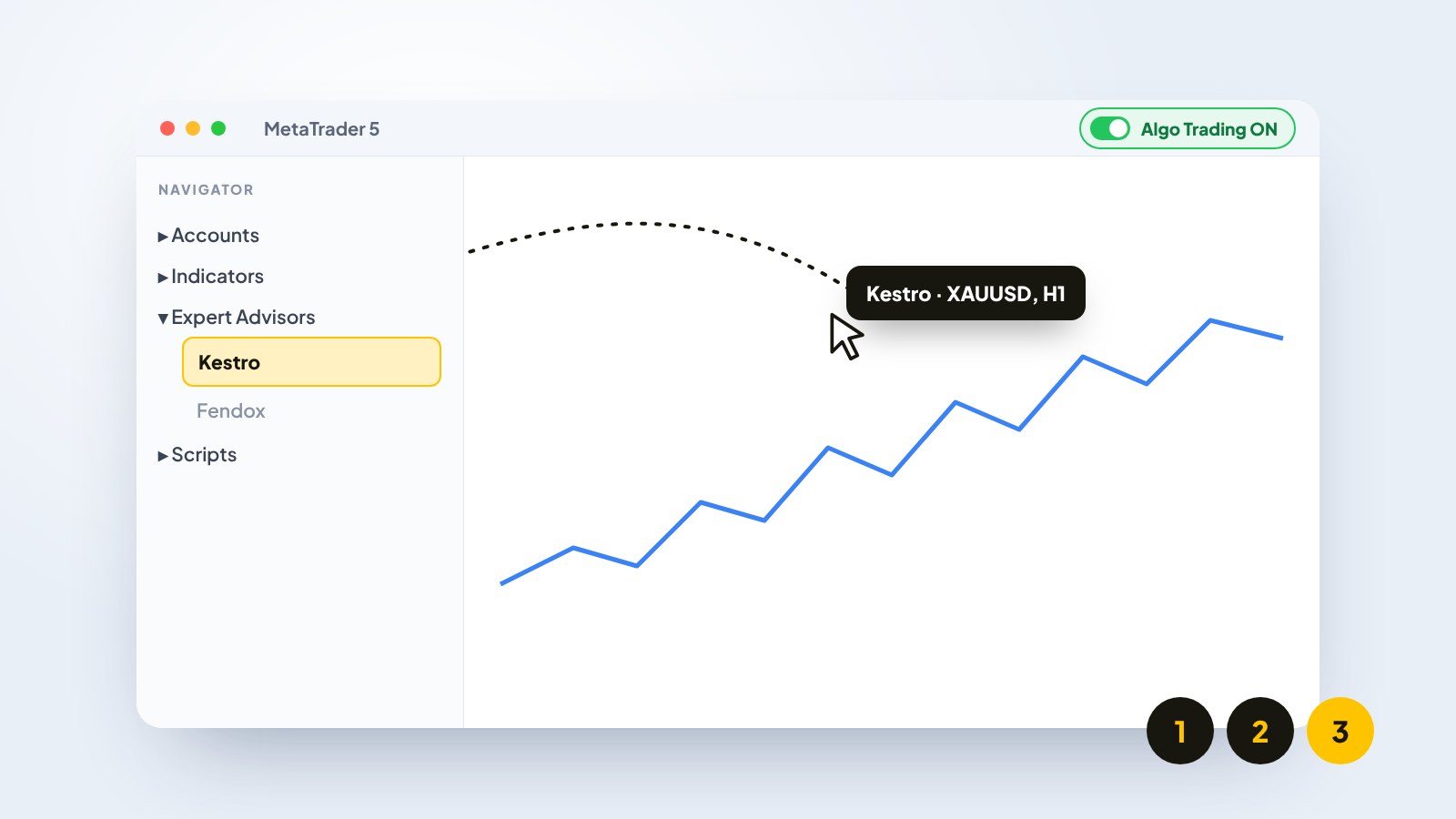
Back in MetaTrader, open the Navigator window (Ctrl+N if it is hidden). Right-click Expert Advisors and choose Refresh. Your EA appears in the list. If it does not, close and reopen MetaTrader.
Step 4: open the right chart
Open the chart of the symbol the EA is built for, for example XAUUSD for a gold bot. The symbol name can differ by broker, such as XAUUSD, XAUUSDm or GOLD. Use the one your broker shows in Market Watch. The timeframe matters too, so use the one in the EA's guide.
Step 5: attach the EA
Drag the EA from the Navigator onto the chart. A settings window opens.
- On the Common tab, tick Allow Algo Trading (on MetaTrader 4: Allow live trading).
- On the Inputs tab, paste your licence key into the licence field if there is one, and check the risk settings.
- Click OK.
Step 6: turn on Algo Trading
At the top of MetaTrader there is an Algo Trading button (on MetaTrader 4: AutoTrading). This button controls every EA in the terminal at once.
The Algo Trading button must be green. If it is off, the EA sits on the chart and does nothing.
Step 7: allow the licence check
Some EAs check their licence online. In Tools, Options, Expert Advisors, tick Allow WebRequest for listed URL and add the address the EA's guide gives you. For Nectabot bots that is https://nectabot.com.
How to know it is working
- The EA's name appears in the top right corner of the chart. On MetaTrader 5 a small blue hat icon shows next to it when it is allowed to trade.
- Most Nectabot bots draw a panel on the chart showing the licence status and what the bot is doing.
- The Experts tab at the bottom of the terminal shows the EA's messages. Read it first when something seems wrong.
When the EA does not trade
- Algo Trading is off. Check the toolbar button and the Common tab tick.
- Wrong file for the platform. An .ex4 file will not load in MetaTrader 5, and the reverse.
- Wrong chart. The EA may only trade the symbol it was built for.
- Licence not active. The key may be for a different account number, or WebRequest is not allowed.
- Market closed. Nothing happens at the weekend or outside the symbol's trading hours.
- Spread too wide. Many EAs skip entries when the spread is above a limit.
Keep it running
An EA can only trade while MetaTrader is open and connected. If you switch off your computer, it stops. For bots that run around the clock, a VPS (a computer in a data centre that stays on) is the usual answer.
Need a hand?
Every Nectabot product comes with its own guide for these steps. If you would rather not do it alone, you can book a setup session from your dashboard and a Nectabot setup manager installs it with you on a call.